





















































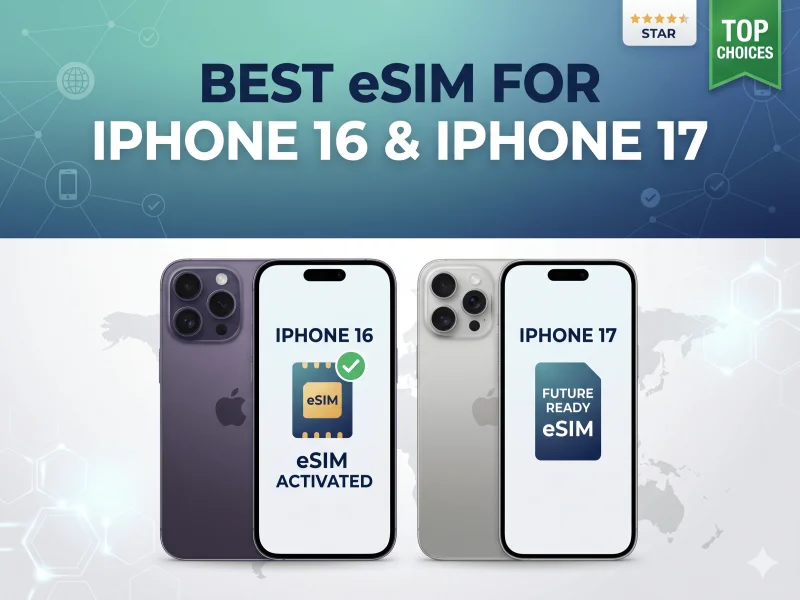
The key fact in 2026: The iPhone 17 Air is eSIM-only worldwide — no physical SIM tray on any model, in any country. If you have an iPhone 17 Air and want internet abroad, a travel eSIM is your only option. This guide covers every iPhone 16 and 17 model, what changed with eSIM, and the best travel plans from $1.91.
Apple has been quietly making eSIM the only way to connect since 2022, when the US iPhone 14 dropped its physical SIM tray entirely. Four years later, the transformation is complete. The iPhone 17 Air has no SIM tray anywhere on the planet — and for travellers, this changes everything.
The good news is that eSIM technology is now more powerful and easier than ever. Your iPhone 16 or 17 can store 8 or more eSIM profiles — one for Japan, one for Europe, one for the USA — all saved on the device, ready to activate with two taps. You never need to visit an airport kiosk, fumble with a SIM pin, or lose your home number for banking SMS again.
This guide covers every iPhone 16 and 17 model's eSIM capabilities, what the regional differences mean in practice, how to set up a travel eSIM in 3 minutes, and which plans offer the best value for international travel in 2026.
🌍 Tourist eSIM — the best travel eSIM for iPhone 16 & 17
Works on all iPhone 16 & 17 models · From $1.91 · 200+ countries · QR code in seconds · Data+Voice+SMS plans
Browse Plans →📱 iPhone 17 eSIM — Everything You Need to Know
The iPhone 17 series launched in September 2025 and represents Apple's most aggressive push yet towards a fully eSIM world. Here's what changed compared to previous generations.
|
SIM TYPE eSIM only (no tray anywhere) |
PROFILES STORED 8+ eSIM profiles |
|
ACTIVE SIMULTANEOUSLY 2 active eSIMs at once |
THICKNESS 5.6mm — thinnest iPhone ever |
🌍 Traveller note: If you have an iPhone 17 Air, a travel eSIM is your only option for international connectivity. There is no physical SIM tray on this device in any country. Install Tourist eSIM at home before you fly.
|
USA / CANADA / JAPAN eSIM-only, no physical tray |
EUROPE / MOST MARKETS nano-SIM + eSIM (dual) |
|
PROFILES STORED 8+ eSIM profiles |
ACTIVE AT ONCE 2 eSIMs simultaneously |
💡 Battery bonus: The space freed by removing the SIM tray gave Apple room for a larger battery — eSIM-only iPhone 17 models get up to 2 extra hours of battery life compared to dual-tray versions.
Which countries have eSIM-only iPhone 17?
If you bought your iPhone 17 (excluding Air) in one of these 12 countries, you have no physical SIM tray. A travel eSIM is your only option for international connectivity:
👉 Swipe left on mobile to see all
| Country | iPhone 17 / Pro / Pro Max | iPhone 17 Air | Travel eSIM needed? |
|---|---|---|---|
| 🇺🇸 United States | eSIM only | eSIM only | ✓ Yes — mandatory |
| 🇨🇦 Canada | eSIM only | eSIM only | ✓ Yes — mandatory |
| 🇯🇵 Japan | eSIM only | eSIM only | ✓ Yes — mandatory |
| 🇲🇽 Mexico | eSIM only | eSIM only | ✓ Yes — mandatory |
| 🇦🇪 UAE | eSIM only | eSIM only | ✓ Yes — mandatory |
| 🇸🇦 Saudi Arabia · 🇶🇦 Qatar · 🇧🇭 Bahrain · 🇰🇼 Kuwait · 🇴🇲 Oman | eSIM only | eSIM only | ✓ Yes — mandatory |
| 🇬🇧 UK · 🇩🇪 Germany · 🇫🇷 France · most of Europe | nano-SIM + eSIM | eSIM only (Air) | Highly recommended |
📱 iPhone 16 eSIM — Full Compatibility Guide
The iPhone 16 series launched in 2024 and cemented dual eSIM as standard. Every model in the lineup supports storing 8 or more eSIM profiles with 2 active at once — making it one of the most travel-capable phones ever built.
👉 Swipe left on mobile to see all
| Model | US version | International version | Profiles stored | Active at once |
|---|---|---|---|---|
| iPhone 16 | eSIM only | nano-SIM + eSIM | 8+ | 2 |
| iPhone 16 Plus | eSIM only | nano-SIM + eSIM | 8+ | 2 |
| iPhone 16 Pro | eSIM only | nano-SIM + eSIM | 8+ | 2 |
| iPhone 16 Pro Max | eSIM only | nano-SIM + eSIM | 8+ | 2 |
| iPhone 16e | eSIM only | nano-SIM + eSIM | 8+ | 2 |
📋 Full iPhone eSIM Compatibility — Every Model (2018–2026)
If you're not sure which iPhone you have, or you're buying a refurbished device for travel, here's the complete reference list:
👉 Swipe left on mobile to see all
| iPhone model | Year | eSIM supported? | Active eSIMs | Notes |
|---|---|---|---|---|
| iPhone 17 Air | 2025 | ✓ eSIM only — worldwide | 2 | First eSIM-only iPhone globally. No physical SIM tray anywhere. |
| iPhone 17 / Pro / Pro Max | 2025 | ✓ Yes (eSIM-only in 12 countries) | 2 | eSIM-only: US, CA, JP, MX, UAE, SA, QA, BH, KW, OM + 2 more. Dual SIM elsewhere. |
| iPhone 16 / Plus / Pro / Pro Max / 16e | 2024 | ✓ Yes | 2 | US: eSIM only. International: nano-SIM + eSIM. 8+ profiles stored. |
| iPhone 15 / Plus / Pro / Pro Max | 2023 | ✓ Yes | 2 | US: eSIM only. International: nano-SIM + eSIM. 8+ profiles stored. |
| iPhone 14 / Plus / Pro / Pro Max | 2022 | ✓ Yes | 2 | First eSIM-only iPhone in the US. International models: nano-SIM + eSIM. |
| iPhone 13 / mini / Pro / Pro Max | 2021 | ✓ Yes | 2 | First iPhone with 2 active eSIMs. nano-SIM + eSIM on most models. |
| iPhone 12 / mini / Pro / Pro Max | 2020 | ✓ Yes | 1 active | nano-SIM + eSIM. 1 eSIM active at a time alongside physical SIM. |
| iPhone 11 / Pro / Pro Max / SE (2020) | 2019–20 | ✓ Yes | 1 active | nano-SIM + eSIM. 1 eSIM active at a time. |
| iPhone XS / XS Max / XR | 2018 | ✓ Yes (first ever) | 1 active | First iPhones with eSIM. nano-SIM + eSIM. 1 eSIM active at a time. |
🔍 How to check if your iPhone supports eSIM in 10 seconds:
Method 1: Open the Phone app → dial *#06# → if a 32-digit EID number appears, your iPhone supports eSIM.
Method 2: Settings → General → About → scroll down → if you see "EID", eSIM is supported.
Method 3: Settings → Cellular → if you see "Add eSIM" or "Add Cellular Plan", your iPhone is compatible.
✈️ How Dual eSIM Works for Travel — The Perfect Setup
The most powerful feature of iPhone 16 and 17 for travellers isn't having eSIM — it's being able to run two eSIMs simultaneously. Here's how to use this properly:
|
LINE 1 — HOME LINE
Your normal carrier eSIM / SIM
|
Set for: calls + SMS. Data Roaming OFF. This line receives your bank 2FA codes, WhatsApp messages linked to your home number, and incoming calls — all while abroad. Your home carrier never charges roaming data because data roaming is disabled. |
|
LINE 2 — TOURIST eSIM
Your Tourist eSIM travel plan
|
Set as: Default Data Line. Data Roaming ON. This line handles all your internet — Google Maps, WhatsApp calls over data, Instagram, email, streaming. Costs from $1.91 for your whole trip vs carrier roaming at $12/day. |
Result: You're contactable on your home number, your banking apps work perfectly, and you're browsing the internet for roughly $2–20 total — instead of $12 per day per device in carrier roaming fees. This is the setup every frequent traveller uses.
⚠️ Why disabling home SIM data roaming is critical
If you leave Data Roaming ON for your home line AND have a Tourist eSIM active, your iPhone might use either line for data. If it picks the home line, you get charged your carrier's roaming rate — potentially $12/day. Always disable Data Roaming on Line 1 (home) and enable it only on Line 2 (Tourist eSIM). This forces all internet traffic through the Tourist eSIM.
⚙️ How to Install Tourist eSIM on iPhone 16 or 17 — Step by Step
Do this at home, 24–48 hours before you fly. You need a stable Wi-Fi connection. The whole process takes 3–4 minutes.
Go to touristesim.net/coverage, select your destination or a regional plan, choose your data size (use the table above as a guide), and complete checkout. Your QR code is sent by email within seconds — no waiting, no shipping.
Go to Settings → Cellular → Add eSIM. On some iPhones this shows as Settings → Mobile Service → Add Cellular Plan. Tap Use QR Code.
iPhone 17 Air users: Since your device has no physical SIM tray, Settings → Cellular will show only eSIM options. The process is identical — tap Add eSIM → Use QR Code.
Point your iPhone camera at the QR code in the Tourist eSIM confirmation email. iOS will detect it automatically. Tap Continue and follow the prompts. Installation takes about 60 seconds. If you can't scan (e.g. only one device), you can also copy the activation code manually — Tourist eSIM provides both options.
When prompted, label the new eSIM — e.g. "Japan Tourist eSIM" or "Travel Data". Then in Settings → Cellular:
- Set Tourist eSIM as your Default for Cellular Data
- Turn Data Roaming ON for Tourist eSIM line
- Turn Data Roaming OFF for your home line
- Keep your home line active for calls + SMS
Turn off airplane mode when you land. The Tourist eSIM auto-connects to the best local network. Google Maps works before you reach passport control. Your home number still receives calls and SMS. Zero roaming charges from your home carrier.
💾 The 8+ Stored Profiles Feature — Your Travel Superpower
Most people don't realise that iPhone 16 and 17 can store 8 or more eSIM profiles simultaneously — not just one at a time. This is transformative for frequent travellers.
What 8+ stored profiles means in practice:
|
|
The result: When you land in Japan, you go to Settings → Cellular → tap the Japan eSIM → toggle it on. Done. No QR code to scan, no purchase to make, no setup to do. Your saved profiles are ready to activate instantly on every trip.
💡 Pro tip: Tourist eSIM plans don't activate until you land in the destination country — the timer starts only when the plan connects to a local network. So you can buy Japan, Thailand, and USA eSIMs all at once, store them on your iPhone, and activate each one only when you actually travel there. No expiry pressure.
🏆 Why Tourist eSIM Is the Best Travel eSIM for iPhone 16 & 17
Your iPhone 16 or 17 is the most eSIM-capable device ever built. Pair it with the right travel eSIM provider and you have a genuinely unbeatable travel connectivity setup. Here's why Tourist eSIM is the right choice:
|
📞 Data + Voice + SMS plans — unique in the market Tourist eSIM is the only travel eSIM provider that offers plans with actual voice calling and SMS — not just data. This means your Tourist eSIM line can receive real phone calls abroad, not just WhatsApp calls. For travellers who need a reliable second phone number, this is unmatched.
|
|
💰 From $1.91 — save 80–90% vs carrier roaming AT&T and Verizon charge $12/day. A 10-day trip abroad costs $120 in carrier day passes. Tourist eSIM covers the same 10 days for $10–20 total. For a family with 4 iPhones, the saving is $400–450 per trip.
|
|
🌐 200+ countries — one provider for every trip Store Tourist eSIM plans for Japan, Europe, USA, Thailand, and more — all on your iPhone at once. Regional plans cover multiple countries so you switch between France, Germany, and Italy with one eSIM profile.
|
|
📲 Instant QR code delivery — works perfectly with iOS QR code arrives by email within seconds of purchase. iOS 17/18 can even detect eSIM QR codes from photos and emails, making setup even faster on iPhone 16 and 17.
|
|
🔥 Hotspot tethering included on most plans Share your iPhone 17's connection via Personal Hotspot to iPads, MacBooks, or other devices. Most Tourist eSIM plans support this — check individual plan details before purchase.
|
|
💬 24/7 WhatsApp support in 17 languages If your Tourist eSIM doesn't connect the moment you land, WhatsApp support is available around the clock. Unlike Airalo (AI chatbot + email only), you get a real human response.
|
Tourist eSIM vs carrier roaming on iPhone 17 — side by side
👉 Swipe left on mobile to see all
| Feature | Tourist eSIM | AT&T / Verizon Roaming | Airport SIM card |
|---|---|---|---|
| Cost (10-day Japan trip) | ~$12–20 | $120 | $25–40 |
| Home number stays active | ✓ Yes | ✓ Yes | ✗ No |
| Banking SMS (2FA) works | ✓ Yes | ✓ Yes | ✗ No |
| Install before you travel | ✓ Yes | ✓ Yes (auto) | ✗ No |
| Works on iPhone 17 Air (no tray) | ✓ Yes | ✓ Yes | ✗ No (needs tray) |
| Voice + SMS plans available | ✓ Yes — unique | ✓ Yes | ✗ Usually data only |
| Store multiple country plans | ✓ Yes (8+ profiles) | ✗ No | ✗ No |
🌍 The best travel eSIM for your iPhone 16 or 17
From $1.91 · 200+ countries · Data+Voice+SMS plans · Instant QR delivery · 24/7 support · 500,000+ travellers
Browse All Plans →Top destinations: Japan · Europe · USA · Thailand · Asia Regional
🔧 eSIM Troubleshooting — iPhone 16 & 17
Most eSIM issues on iPhone 16 and 17 have simple fixes. Here are the most common problems and solutions:
Most likely cause: Your iPhone is carrier-locked. If you bought it on a payment plan through AT&T, Verizon, or another carrier, it may be locked to that carrier. Fix: Go to Settings → General → About → look for "Network Provider Lock" or "SIM Lock." If it shows anything other than "No SIM restrictions" or "Unlocked," contact your carrier to request an unlock. This is usually free once your contract terms are met.
Most likely cause: Data Roaming is not enabled on the Tourist eSIM line. Fix: Settings → Cellular → tap your Tourist eSIM plan → toggle Data Roaming ON. Also confirm the Tourist eSIM is set as Default Cellular Data. Try toggling airplane mode off and on to force network reconnection.
Most likely cause: Data Roaming is ON for your home line as well as the Tourist eSIM. Fix: Settings → Cellular → tap your home carrier line → turn Data Roaming OFF. Leave it ON only for the Tourist eSIM line. This ensures all data traffic routes through Tourist eSIM, not your home carrier.
Fix: If scanning from a screen is difficult, try: (1) adjusting screen brightness on the device showing the QR code, (2) using the manual activation code instead — Tourist eSIM provides both in your confirmation email, or (3) saving the QR image to Photos and using the native iOS QR scanner from there. Must be connected to Wi-Fi during installation.
Cause: Each Tourist eSIM QR code can only be used once per device. If you accidentally scanned it twice or deleted the eSIM and are trying to reinstall, contact Tourist eSIM support on WhatsApp. They can issue a new QR code for your account.
❓ Frequently Asked Questions
Does iPhone 17 have a physical SIM card slot?
It depends on the model and region. The iPhone 17 Air has no physical SIM slot anywhere in the world. The iPhone 17, 17 Pro, and 17 Pro Max are eSIM-only in 12 countries including the USA, Canada, Japan, Mexico, and the UAE. In most European and other international markets, these three models still include a nano-SIM tray alongside eSIM support.
Can I use a travel eSIM if my iPhone 17 already has a home eSIM?
Yes. iPhone 16 and 17 can run two eSIMs simultaneously. Your home eSIM stays active for calls and texts. You install Tourist eSIM as a second active line and set it as your default data line. Both work at the same time — this is the dual eSIM feature and it's the ideal travel setup.
Does eSIM drain battery faster on iPhone 17?
No. eSIM technology does not consume more power than a physical SIM. In fact, the opposite is true for iPhone 17 — Apple used the space freed by removing the SIM card tray to fit a larger battery, giving eSIM-only iPhone 17 models up to two extra hours of battery life compared to dual-tray versions.
Can I transfer a Tourist eSIM to a new iPhone?
Tourist eSIM plans are tied to the device they're installed on and cannot be transferred directly like a physical SIM card. If you get a new iPhone, you would purchase a new eSIM plan. However, since Tourist eSIM plans are priced from $1.91, this is a minimal cost. Your purchase history and account remain accessible for reference.
Is Tourist eSIM compatible with iPhone 16 Pro Max?
Yes. Tourist eSIM works on all iPhone 16 models including the 16 Pro Max, as well as all iPhone 17 models including the 17 Air. It also works on any iPhone from the XS/XR (2018) onwards. The only requirement is that your device is eSIM-compatible and carrier-unlocked.
What happens to my bank 2FA texts when using a travel eSIM?
With Tourist eSIM's dual eSIM setup, your home line stays active and receives SMS as normal. Your bank's verification texts go to your home number, which is still in your iPhone. You never get locked out of banking apps. This is a major advantage over buying a local SIM card at the airport, which requires removing your home SIM entirely.
How do I know if my iPhone 17 is carrier-locked?
Go to Settings → General → About → scroll down and look for "Network Provider Lock" or "SIM Lock." If it shows "No SIM Restrictions" or "Unlocked," you can use any eSIM including Tourist eSIM. If it shows a carrier name or "SIM Locked," contact your carrier to request an unlock — this is usually free once your device payment plan or contract minimum terms are met.




Comments