





















































In the age of constant connectivity, understanding and managing your data usage is more critical than ever. Samsung devices, known for their robust features and user-friendly interface, offer a comprehensive way to monitor and control data consumption. Data usage refers to the amount of data transferred over your mobile network or Wi-Fi connection, including everything from streaming videos and downloading apps to browsing the web and sending emails.
Samsung devices come equipped with built-in tools that allow users to track their data usage effectively. These tools are designed to provide detailed insights into how much data each app consumes, enabling users to make informed decisions about their data use. By leveraging these features, you can ensure that you stay within your data limits and avoid unexpected overage charges.
It's essential to understand the different types of data usage: mobile data and Wi-Fi data. Mobile data is the data you use when connected to your carrier's network, while Wi-Fi data is consumed when you are connected to a wireless network. Both types of data usage need to be monitored to maintain a balanced and cost-effective mobile experience. Samsung devices make it easy to differentiate between the two, allowing for more precise management of your data consumption.
There are several reasons why you might want to reset the data usage on your Samsung device. One of the most common reasons is to manage and monitor your monthly data allowance more effectively. By resetting your data usage at the beginning of your billing cycle, you can keep a closer eye on your consumption and prevent exceeding your data limit, which can result in additional charges from your carrier.
Another reason to reset data usage is to troubleshoot any issues related to data consumption. If you notice an unexpected spike in your data usage, resetting the data counters can help you identify the culprit. This is especially useful if you suspect that a particular app is consuming more data than it should or if you want to test the impact of disabling certain features or services.
Additionally, resetting data usage can be beneficial for those who share their devices with others. If multiple people use the same device, keeping track of individual data usage can be challenging. By resetting the data counters, you can start fresh and monitor the usage more accurately, ensuring that everyone stays within the allocated data limits.
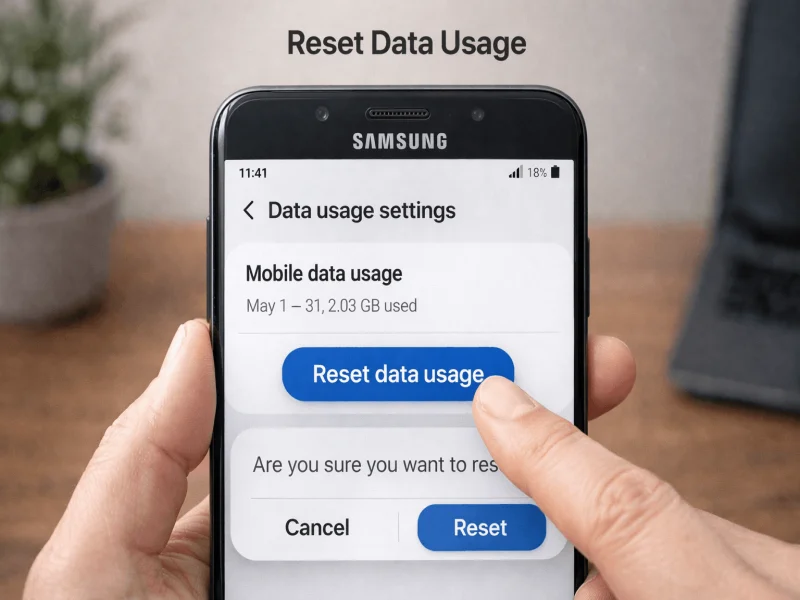
Resetting data usage on your Samsung device is a straightforward process that can be completed in just a few steps. Whether you need to reset mobile data usage or Wi-Fi data usage, the steps are simple and easy to follow. Here is a comprehensive guide to help you reset your data usage and regain control over your mobile experience.
Accessing Data Usage Settings on Samsung Devices
The first step in resetting your data usage is to access the data usage settings on your Samsung device. To do this, open the "Settings" app from your home screen or app drawer. Once you are in the Settings menu, scroll down and tap on "Connections" or "Network & Internet," depending on your device model and software version. Within this menu, you will find an option labeled "Data usage" or "Data manager."
Tapping on "Data usage" will take you to a screen where you can view detailed information about your data consumption. Here, you will see a breakdown of your mobile data usage and Wi-Fi data usage, along with a list of apps and services that are consuming data. This screen provides a comprehensive overview of your data usage patterns, allowing you to make informed decisions about resetting and managing your data.
Resetting Mobile Data Usage
Once you have accessed the data usage settings, you can proceed to reset your mobile data usage. On the data usage screen, look for an option labeled "Mobile data usage." Tapping on this option will display your monthly mobile data usage, along with a list of apps that are consuming data. To reset your mobile data usage, you will need to set a new data usage cycle.
To set a new data usage cycle, tap on the "Billing cycle and data warning" or "Data usage cycle" option. Here, you can specify the start date of your new billing cycle. Choose a date that aligns with your carrier's billing cycle, and then tap "Set" or "Save" to confirm your selection. Once you have set the new billing cycle, your mobile data usage will be reset, and you can start tracking your data consumption from the beginning of the new cycle.
Resetting Wi-Fi Data Usage
Resetting Wi-Fi data usage follows a similar process to resetting mobile data usage. On the data usage screen, look for an option labeled "Wi-Fi data usage." Tapping on this option will display your monthly Wi-Fi data usage, along with a list of apps that are consuming data over Wi-Fi. To reset your Wi-Fi data usage, you will need to set a new usage cycle.
To set a new Wi-Fi usage cycle, tap on the "Manage Wi-Fi usage" or "Wi-Fi usage cycle" option. Here, you can specify the start date of your new usage cycle. Choose a date that makes sense for your usage patterns, and then tap "Set" or "Save" to confirm your selection. Once you have set the new usage cycle, your Wi-Fi data usage will be reset, and you can start tracking your data consumption from the beginning of the new cycle.
After resetting your data usage, it's essential to monitor your consumption regularly to ensure that you stay within your data limits. Samsung devices offer several tools and features that make it easy to track your data usage and receive alerts when you are approaching your limit.
What If You Miss Your Mobile Data Usage Period Reset Date?
Missing your mobile data usage reset date isn’t the end of the world, but it can skew your understanding of how much data you’re really using. If you forget to reset your data cycle in sync with your carrier’s billing period, your device will continue adding up data usage from the previous cycle. This means the tracked data on your device will likely be higher than what your carrier actually records, making it tough to accurately gauge how close you are to your monthly limit.
Here’s what you might notice:
- Overlapping Data Counts: Your phone’s tally won’t match your carrier’s records, so you could think you’re over (or under) your cap when you’re actually not.
- Unreliable Warnings: Any usage alerts or limits you've set may no longer line up with your real billing cycle. This can result in missing warnings before reaching your limit.
- Potential Overage Risks: If you rely solely on your device’s data meter, you could inadvertently blow past your carrier’s limit and face overage charges from companies like Verizon, AT&T, or T-Mobile.
To get things back on track, simply reset your data cycle as soon as possible to match your carrier’s next billing date. And for peace of mind, consider setting a recurring reminder in your calendar app—both Google Calendar and Outlook can help keep you on schedule. Staying diligent with resets makes it much easier to avoid surprises on your next bill.
Setting Data Usage Limits and Warnings
One of the most effective ways to monitor your data usage is to set data usage limits and warnings. On the data usage screen, you will find options to set a data usage limit and a data usage warning. The data usage limit is the maximum amount of data you are allowed to use within a billing cycle, while the data usage warning is a threshold that triggers a notification when you are approaching your limit.
To set a data usage limit, tap on the "Set data limit" option and enter the desired limit in megabytes or gigabytes. Once you have set the limit, your device will automatically disable mobile data when you reach the specified limit, preventing you from incurring additional charges. Similarly, to set a data usage warning, tap on the "Set data warning" option and enter the desired threshold. Your device will notify you when your data usage reaches the specified threshold, allowing you to take action to reduce your consumption.
Using Data Saver Mode
Samsung devices also offer a Data Saver mode, which helps reduce data usage by restricting background data and limiting the data consumption of certain apps. To enable Data Saver mode, go to the data usage settings and tap on "Data Saver." Toggle the switch to turn on Data Saver mode, and you will see a list of apps that are allowed to use data in the background. You can customize this list by adding or removing apps based on your preferences.
When Data Saver mode is enabled, your device will prioritize essential data usage and prevent non-essential apps from consuming data in the background. This can significantly reduce your overall data consumption and help you stay within your data limits.
Effectively managing data usage on your Samsung device involves more than just resetting data counters. By implementing a few additional strategies, you can optimize your data consumption and avoid exceeding your data limits.
Use Wi-Fi Whenever Possible
One of the simplest ways to reduce mobile data usage is to connect to Wi-Fi whenever possible. Wi-Fi connections are typically faster and more reliable than mobile networks, and they do not count towards your mobile data limit. Make it a habit to connect to Wi-Fi networks at home, work, and public places such as cafes and libraries. This will help you conserve your mobile data for situations when Wi-Fi is not available.
Additionally, you can configure your device to automatically switch to Wi-Fi when a known network is in range. To do this, go to the Wi-Fi settings and enable the "Auto-connect" or "Smart network switch" option. This feature ensures that your device always uses Wi-Fi when available, minimizing your mobile data consumption.
Limit Background Data Usage
Many apps continue to consume data in the background, even when you are not actively using them. To limit background data usage, go to the data usage settings and tap on "Background data." Here, you can see a list of apps that are allowed to use data in the background. Toggle the switch next to each app to restrict background data usage.
By limiting background data usage, you can prevent apps from consuming data without your knowledge and reduce your overall data consumption. Keep in mind that some apps, such as email and messaging apps, may require background data to function correctly, so use this feature judiciously.
Optimize App Settings
Many apps offer settings that allow you to control their data usage. For example, streaming apps such as YouTube and Netflix allow you to adjust the video quality to reduce data consumption. Social media apps like Facebook and Instagram offer options to limit the automatic loading of images and videos. By optimizing the settings of individual apps, you can significantly reduce their data usage and stay within your data limits.
Take the time to explore the settings of your frequently used apps and make adjustments to minimize their data consumption. This may include disabling auto-play videos, reducing the frequency of updates, and enabling data-saving modes where available.
While resetting data usage and implementing data-saving strategies can help you manage your data consumption effectively, you may still encounter some common issues. Here are a few troubleshooting tips to address potential problems.
Data Usage Not Resetting
If you find that your data usage is not resetting as expected, there may be a few reasons for this issue. First, ensure that you have correctly set the new billing cycle or usage cycle date. Double-check the date you selected and make sure it aligns with your carrier's billing cycle or your preferred usage cycle.
If the date is correct and the issue persists, try restarting your device. Sometimes, a simple restart can resolve software glitches and ensure that the data usage counters are reset correctly. If the problem continues, consider performing a software update to ensure that your device is running the latest version of the operating system, as updates often include bug fixes and improvements.
Inaccurate Data Usage Reporting
Inaccurate data usage reporting can be frustrating, especially if it leads to unexpected charges. To address this issue, verify that your device's data usage settings are configured correctly. Ensure that the data usage cycle date matches your carrier's billing cycle and that the data usage limit and warning thresholds are set accurately.
If the data usage reporting remains inaccurate, consider using a third-party data usage monitoring app. These apps can provide additional insights and help you cross-check the data usage reported by your device. Popular data usage monitoring apps include My Data Manager, Data Usage Monitor, and DataEye.
Unexpected Data Spikes
If you notice unexpected spikes in your data usage, it is essential to identify the cause and take corrective action. Start by reviewing the data usage breakdown in the data usage settings to see which apps are consuming the most data. Look for any apps that show unusually high data usage and investigate their settings and background data consumption.
In some cases, unexpected data spikes may be caused by malware or unauthorized apps running on your device. Perform a thorough scan using a reputable antivirus app to ensure that your device is free from malware and other security threats. Additionally, review the list of installed apps and remove any that you do not recognize or no longer use.
Managing data usage on your Samsung device is crucial for maintaining control over your mobile experience and avoiding unexpected charges. By understanding how data usage is tracked, resetting data counters, and implementing data-saving strategies, you can effectively manage your data consumption and stay within your limits.
Resetting data usage on your Samsung device is a simple process that can be done in just a few steps. By accessing the data usage settings, setting new usage cycles for mobile and Wi-Fi data, and monitoring your consumption regularly, you can ensure that you are always aware of your data usage patterns.
In addition to resetting data usage, adopting best practices such as using Wi-Fi whenever possible, limiting background data usage, and optimizing app settings can help you reduce your overall data consumption. If you encounter any issues, troubleshooting tips can help you address common problems and ensure accurate data usage reporting.
By taking control of your data usage, you can enjoy a seamless and cost-effective mobile experience on your Samsung device. Stay proactive in monitoring and managing your data consumption, and you will be well-equipped to make the most of your mobile connectivity without the worry of exceeding your data limits.






Comments