





















































Quick Answer
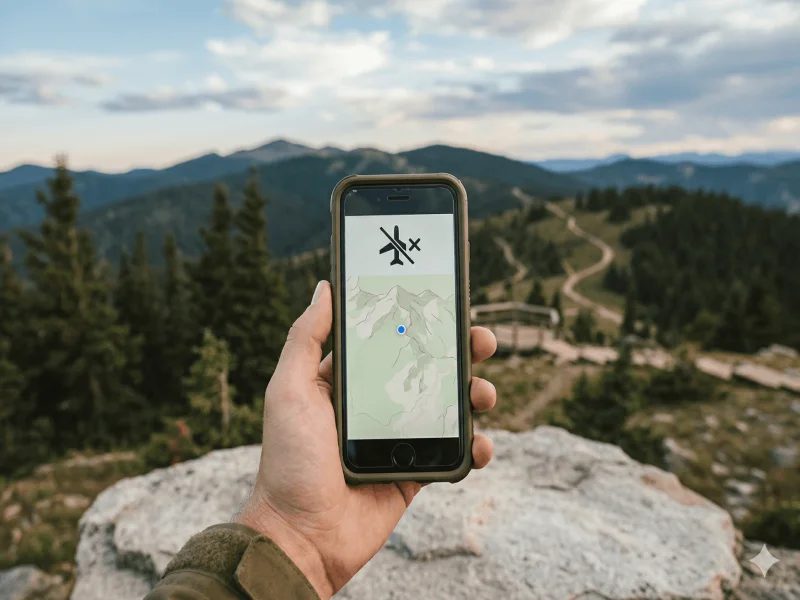
Airplane mode does not fully turn off location. It disables cellular and Wi-Fi connections — removing network-based location — but your phone's GPS hardware keeps working. Apps can still pinpoint your position via satellite. To fully stop location tracking, you must disable both airplane mode and turn off Location Services in your device settings.
In This Guide
1. How Airplane Mode Actually Works
When you switch on airplane mode, your phone broadcasts a simple instruction to its radios: stop transmitting. The name comes from aviation regulations that historically restricted devices emitting radio frequency signals onboard aircraft, out of concern for avionics interference.
Specifically, airplane mode cuts off your cellular radio (no calls, no SMS, no mobile data), Wi-Fi, and Bluetooth by default — though you can manually re-enable Wi-Fi and Bluetooth while airplane mode remains on. What it does not cut off is GPS.
This distinction is critical: airplane mode controls what your phone transmits, not what it receives. GPS only receives signals from satellites orbiting 20,000 km above Earth — it never sends anything back. So aviation regulators never targeted it, and neither does airplane mode.
2. The 3 Types of Location Tracking
To understand what airplane mode actually affects, you need to know that modern smartphones use three distinct technologies to determine your location — and they respond very differently to airplane mode.
GPS (Global Positioning System)
GPS uses a constellation of 31+ satellites operated by the U.S. government. Your phone's GPS chip listens for time signals from at least four satellites simultaneously, then triangulates your exact position. Because your phone only receives these signals and never transmits back, GPS works perfectly in airplane mode. This is why apps like Google Maps and Apple Maps continue to show your position even with airplane mode enabled.
Wi-Fi Positioning (WPS)
Your phone can estimate its location by scanning for nearby Wi-Fi networks and comparing them against a crowdsourced database. This works quickly and indoors where satellites are blocked. Airplane mode cuts Wi-Fi, so WPS is disabled by default — though if you manually re-enable Wi-Fi while in airplane mode, WPS comes back too.
Cell Tower Triangulation
Even without GPS or Wi-Fi, your phone can estimate location by measuring signal strength from nearby cellular towers. Airplane mode disables the cellular radio, eliminating cell-tower location entirely.
| Location Technology | How It Works | Accuracy | Works in Airplane Mode? |
|---|---|---|---|
| GPS (Satellite) | Receives signals from orbiting satellites | 3–5 meters | Yes |
| Wi-Fi Positioning | Scans nearby Wi-Fi hotspot names | 15–40 meters | Only if Wi-Fi re-enabled |
| Cell Tower Triangulation | Measures cellular tower signal strength | 100m–5km | No |
| IP Address Geolocation | Maps internet IP to approximate region | City level | No |
3. What Airplane Mode Does (and Doesn't) Disable
Let's be precise here, because a lot of online articles blur these details.
✅ What airplane mode DOES disable: Outgoing cellular calls and SMS, mobile data (3G/4G/5G), Wi-Fi by default, Bluetooth by default — and therefore: cell tower location, IP geolocation, and cloud sync of location data.
⚠️ What airplane mode does NOT disable: GPS hardware, the phone's ability to compute its own position via satellite, and local storage of location logs. An app that was tracking you before airplane mode may continue to log GPS coordinates locally, then upload them all at once when you reconnect.
This last point matters for privacy-conscious travelers. Apps with background location access — ride-sharing apps, fitness trackers, family location apps like Life360 — can record your GPS trail in airplane mode. They just can't send it anywhere until you restore a connection.
4. Can Someone Track Your Location in Airplane Mode?
This is the question most people are really asking. The short answer: real-time remote tracking is impossible in airplane mode, but a historical record of your movements may still be created locally.
Remote tracking (another person watching you live)
Family location apps, Find My iPhone, Google Maps sharing, and stalkerware all require an internet connection to transmit your position in real time. In airplane mode, no data leaves your device — so nobody can see your live location remotely.
Government or law enforcement tracking
Cell tower records, IMSI catchers (Stingrays), and carrier-level surveillance all require your phone to communicate with the cellular network. Airplane mode severs this. Law enforcement cannot track a phone that isn't connected to any network — though they may subpoena historical records from your carrier.
App-level local logging
If an app has permission to use your GPS and run in the background, it can store a timestamped log of your coordinates locally. This data is uploaded the moment you exit airplane mode. To prevent this, revoke location permissions for specific apps in your device settings.
ℹ️ Pro tip for travelers: If you're concerned about app-level tracking, go to Settings → Privacy → Location Services before your trip and set any suspicious apps to "Never" or "While Using." This prevents background GPS logging even if the app is installed.
5. How to Fully Turn Off Location Tracking
If your goal is complete location privacy — not just "no one can track me right now" but "no app or system can determine my position" — you need to take both of these steps:
- Enable Airplane Mode — This kills cellular and Wi-Fi location and prevents any data from leaving your phone.
- Turn off Location Services (GPS). On iPhone: Settings → Privacy & Security → Location Services → toggle Off. On Android: Settings → Location → toggle Off. This disables the GPS hardware entirely.
- Review app permissions. Even with Location Services off, revisit which apps have been granted location access. Remove permissions from apps you don't trust (Settings → Privacy → Location Services → [App Name] → Never).
Note that you do not need airplane mode to disable GPS. You can turn off Location Services independently, keeping cellular data and Wi-Fi active if you need internet access without location sharing.
6. The Smarter Alternative: Travel with a Tourist eSIM
Many travelers reflexively switch on airplane mode abroad to avoid expensive roaming charges. But this cuts you off from the connectivity you actually need — navigation, translation, emergency calls. The solution isn't airplane mode — it's an affordable travel eSIM from Tourist eSIM.
An eSIM (embedded SIM) is a digital SIM card built into your phone that you can activate instantly — no physical card, no waiting at the airport kiosk. With Tourist eSIM you get coverage in 200+ countries, instant QR code activation, data rates up to 90% cheaper than roaming, and full GPS + map functionality without any airplane mode compromise.
With a Tourist eSIM installed, your personal number stays on your home SIM while data runs through the travel eSIM. You get fast internet abroad — including real-time GPS-enhanced navigation — without surprise roaming fees on your next bill.
7. Frequently Asked Questions
Does airplane mode turn off location sharing on iPhone?
Airplane mode stops real-time location sharing (via Find My, iMessage, etc.) because it cuts internet connectivity. However, your iPhone's GPS hardware continues to log your position locally. If you re-enable Find My sharing after landing, the location shown will be your current position — not a replay of your route.
Does airplane mode turn off location sharing on Android?
Same behavior as iPhone. Google Maps sharing, Family Sharing, and similar services stop updating in real time when airplane mode is on. But GPS continues to function, and any apps with background location permissions may still log your coordinates locally.
Can I use offline maps in airplane mode?
Yes — this is one of the best uses of airplane mode. Download an offline map pack in Google Maps or Maps.me before your flight, then use airplane mode on the plane. GPS will continue to show your position on the offline map even without internet.
Does turning on airplane mode hide my location from my carrier?
Yes. Your carrier tracks your location by noting which cell towers your phone connects to. Airplane mode disconnects from all towers, so your carrier receives no new location data from the moment you enable it.
Will my phone's clock still update in airplane mode?
Network time sync (which uses cellular or Wi-Fi) stops in airplane mode. However, your phone has an internal clock that keeps running. You may notice slight drift over a long flight — re-enabling connectivity syncs the time automatically.
Is it better to use airplane mode or turn off data roaming?
If your goal is to avoid roaming charges while keeping some functionality, disable data roaming rather than using airplane mode. You'll still get Wi-Fi, GPS, and even calls/texts over Wi-Fi calling. Airplane mode is more aggressive — it cuts everything. For travelers, the best option is a Tourist eSIM so you never have to choose.
Does airplane mode affect location history?
Google Timeline and Apple Significant Locations both sync historical location data to the cloud. Airplane mode prevents this sync. But if GPS location logging is enabled on your device, data accumulates locally and uploads when connectivity is restored. To prevent location history entirely, disable Google Timeline in Google Maps settings or turn off Significant Locations in iOS Settings → Privacy → Location Services → System Services.







Comments